

Complete a Validation Task
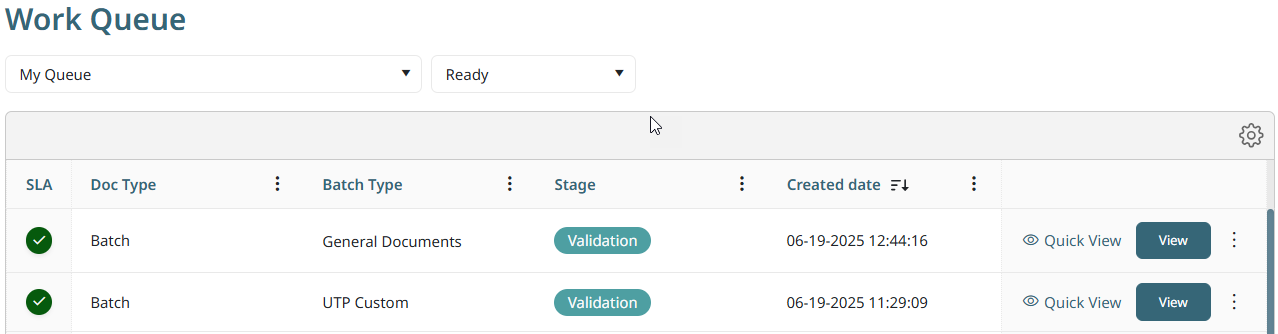
Last Updated: Version R2510If a Validation task is a required step in the batch process flow, the task appears in the Work Queue. Note that only users who have been assigned can complete this Validation stage. To complete the Validation stage, click View.
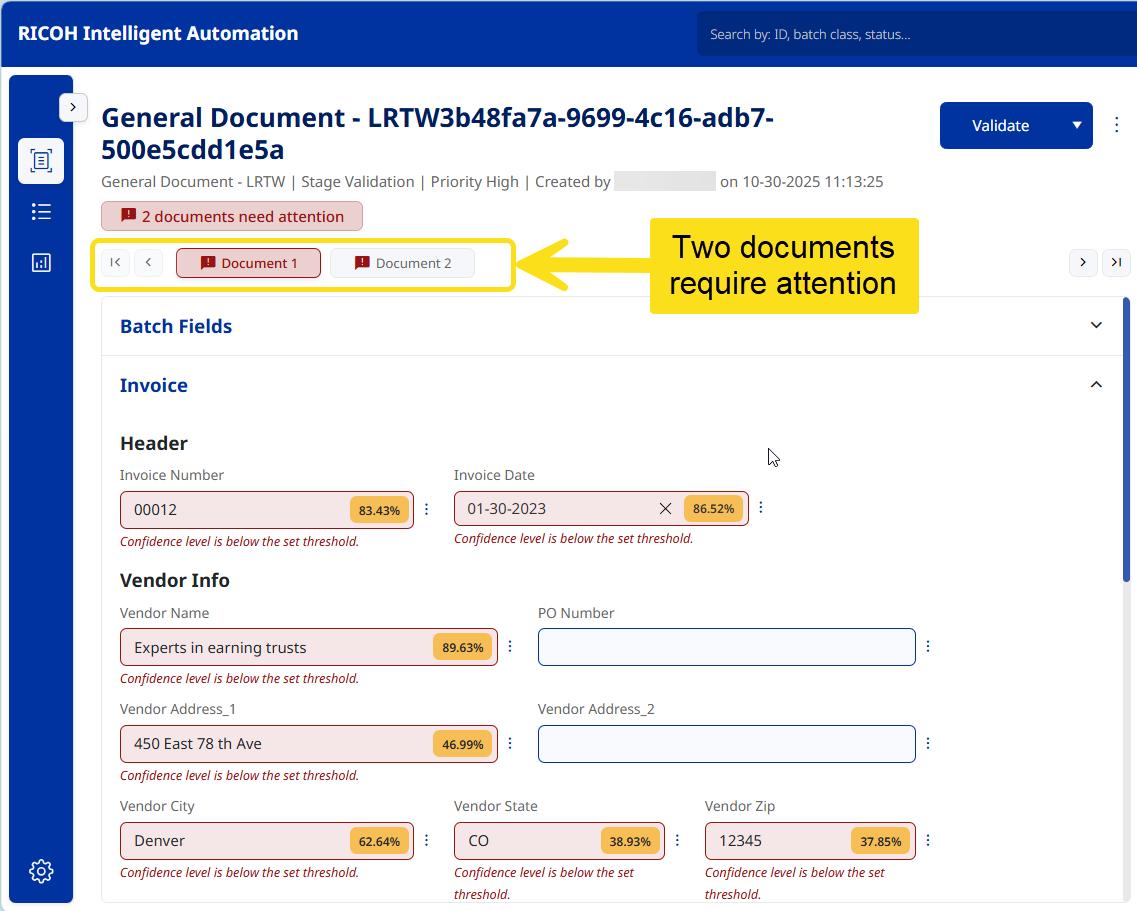
Depending if AI extraction was a required part of the process flow, the Validation screen may list the confidence percentage thresholds for required fields. In the example below, there are 2 documents that need field level validation. For Document 1, shown below, you can see that the confidence threshold for many fields have thrown a flag because the confidence level does not meet the thresholds. To correct these fields:
-
Click in a field and then edit or overwrite the text. If a field has the correct value, simply click at the end of the field and then press Enter to clear the threshold error. When you select a field in the validation panel, the corresponding field is highlighted with a red border on the document.
-
For a date field, use the calendar to pick the correct date.
-
For the Total Amount field, simply type in the correct amount.
Once you click in and then click away from each field, threshold error is cleared. Before you can Validate the batch, you would proceed to correct the errors on the remaining document in the batch.
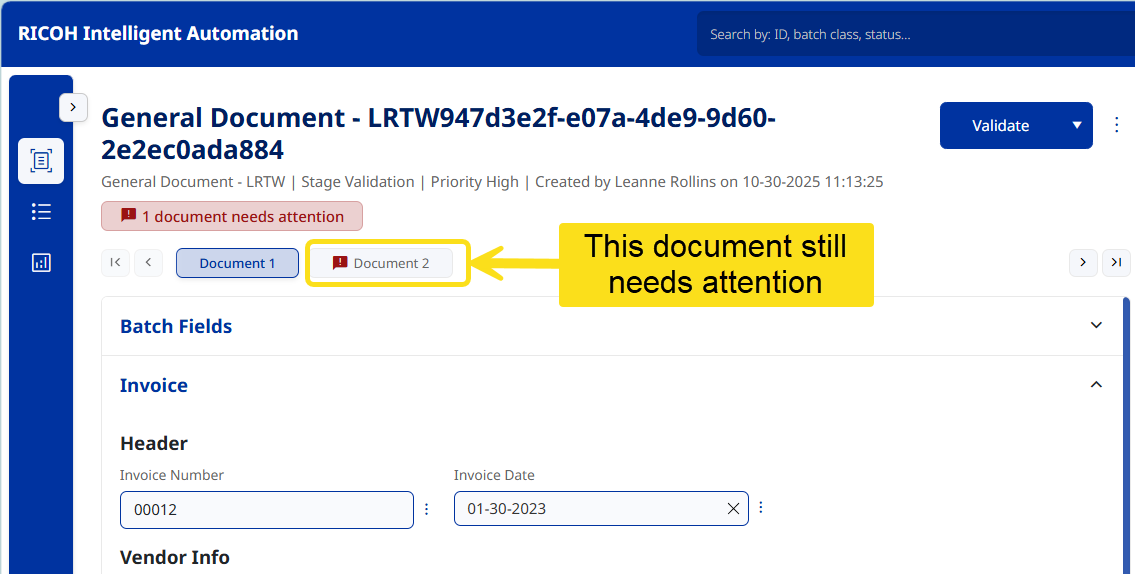
In the example below, the data is not showing any AI confidence threshold errors on Document 1. Instead, the Operator would verify the fields on Document 1, and then proceed to validate fields on Document 2.
Once all fields are validated on all documents, a Confirm message automatically pops up asking if you want to submit the documents. If you click yes, the batch proceeds to the next step in the defined process flow, which may be a Confirmation step, or it may proceed directly to routing to an external repository.
If you opened a Validation task inadvertently, or if you cannot proceed to Validate at this time, click the Ellipses button and select Send back to queue.